

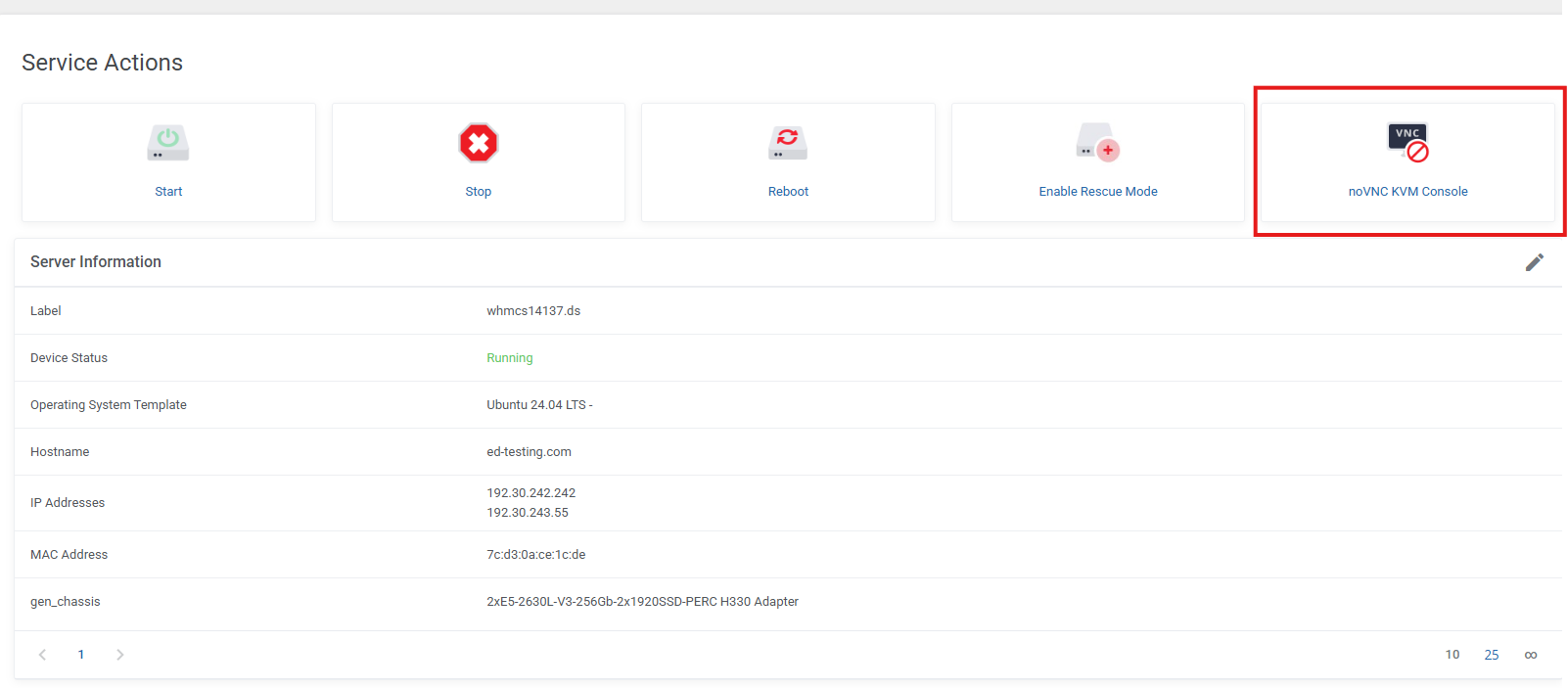
Spin Servers provides browser-based remote console access through the noVNC KVM Console by default. You no longer need to request a separate public IPMI address, configure an IPMI access group, or install an older version of Java on your computer.
The noVNC KVM Console allows you to interact with your server as though a keyboard, monitor, and mouse were connected directly to it. You can use the console to:
- Access the server during startup
- View and modify BIOS or boot settings
- Troubleshoot operating system and network problems
- Install or reinstall an operating system
- Mount installation media using the Virtual Media menu
- Restart or power-cycle the server
Opening the noVNC KVM Console
- Sign in to the Spin Servers Client Area.
- Open Dedicated Servers and select the server you want to manage.
- Under Service Actions, click noVNC KVM Console.
- When the confirmation window appears, click Confirm.
- Allow the console a few moments to establish a connection.
The console may open in a new browser tab or window. If it does not appear, make sure your browser is not blocking pop-ups from the Spin Servers Client Area.
Security Warnings
Depending on your server’s hardware and remote-management controller, one or more security warnings may appear inside the console session.
If prompted:
- Click Continue on the certificate warning.
- Select I accept the risk and want to run this application.
- Click Run.
These warnings originate from the server’s built-in management controller and may appear on certain older systems, including Dell PowerEdge C6220 servers. You do not need to install Java or change Java security settings on your local computer.
Using the Console
Once connected, the top of the page will display:
Console Status: Connected
The console toolbar provides access to options such as power controls, boot settings, macros, and virtual media. The available options may vary depending on the server model.
The console page also includes Insert Username and Insert Password buttons. Your server credentials are already stored in the Client Area, so you can use these buttons to enter them into the console without typing them manually.
When you have finished, click Close Session to disconnect from the console.
If the console does not connect or you need assistance managing your server, please open a support ticket and our team will be happy to help.